This personalized guide offers step-by-step instructions to help you optimize your training efficiency and unlock your full potential within the SkillSignal App.
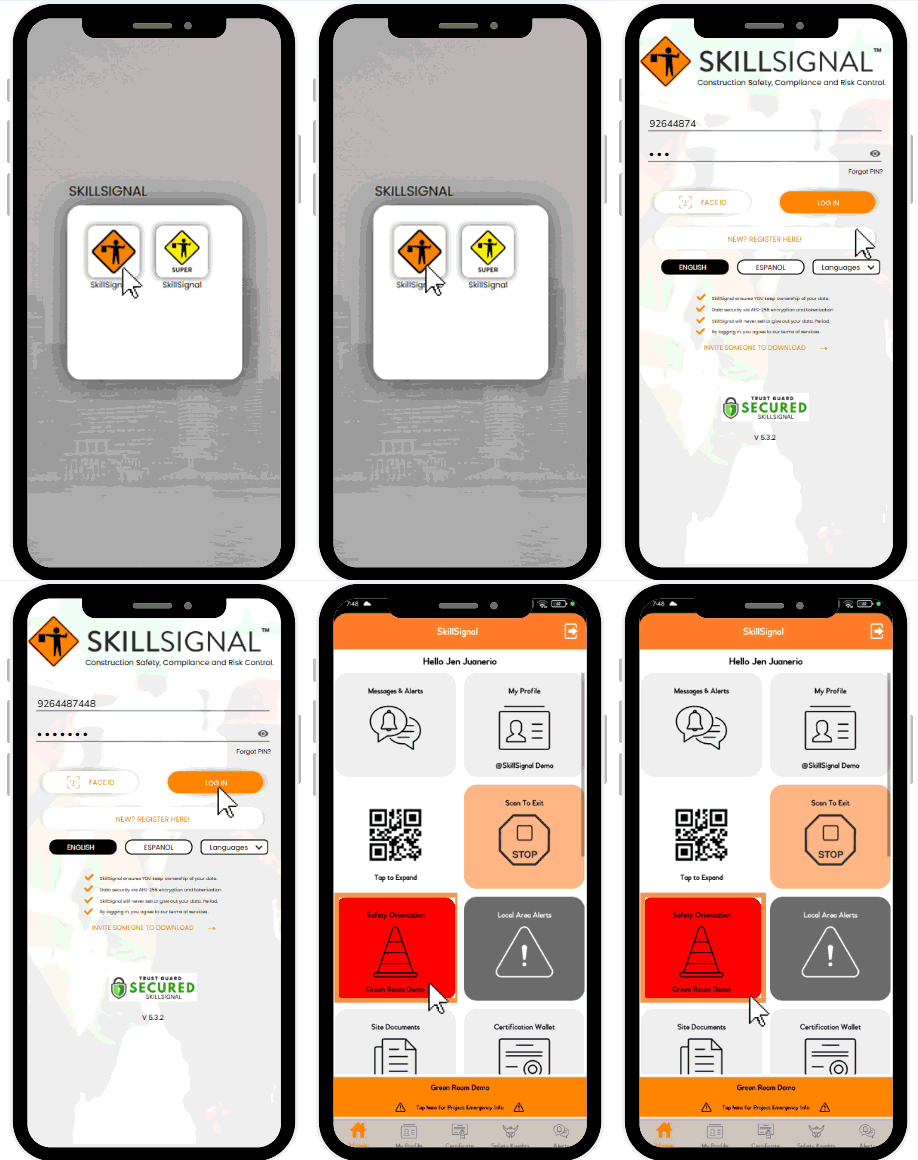
① Log in to your SkillSignal App. Select "Safety Orientation".
 Mod
Mod
② Select the Certificate that you want to update.
③ You have the option to either upload or capture a photo of the certificate's front and back.
Note: Ensure that the uploaded document is free of glare and fits within the square. JPEG, HEIC, and PNG formats are supported.
④ Complete the card information, such as the ID number on the certificate, issued by, certification, issued date, and expiration date, or you can mark it as "Never Expire". You can also add a note and then tap 'Submit'.
⑤ Upon completion of the form, a message will appear saying "Certificate added successfully," and that's it!
Comments
0 comments
Please sign in to leave a comment.